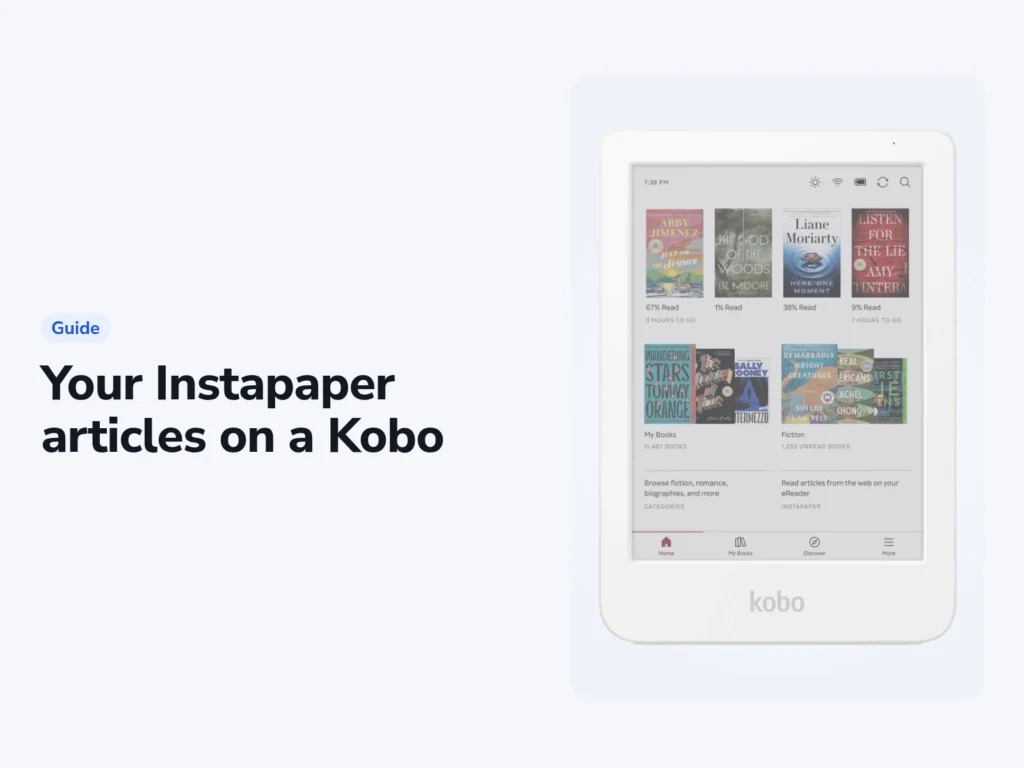
Your Kobo can show your Instapaper reading list for free, under "More" > "My Articles". You link the two once with a code that the Kobo shows, which takes a few minutes and a phone or computer. After that, each sync brings down the articles in Instapaper's Home list. Articles you file in folders, newsletters you forward by email and PDFs never reach the Kobo.
The integration works with a free Instapaper account on currently supported Kobo eReaders, including the Libra Colour and Clara Colour. Instapaper’s separate phone and e-reader apps have different features, so the steps here concern Kobo’s built-in My Articles integration.
What to have ready
- Your Kobo, fully charged and in range of Wi-Fi. A sync can bring a software update, and Kobo says an update won't install unless the reader is fully charged.
- An Instapaper account. You can create a free one at instapaper.com, and it's all the Kobo needs.
- A phone to scan a QR code, or a computer with a browser.
- A way to save articles: Instapaper's browser extension for Chrome, Safari or Firefox (the Chrome one also works in Edge), or its phone app.
Link the Kobo to your Instapaper account
Sync the Kobo first so it has current software. Tap the Sync icon at the top of the Home screen, then "Sync now". After the sync, link it:
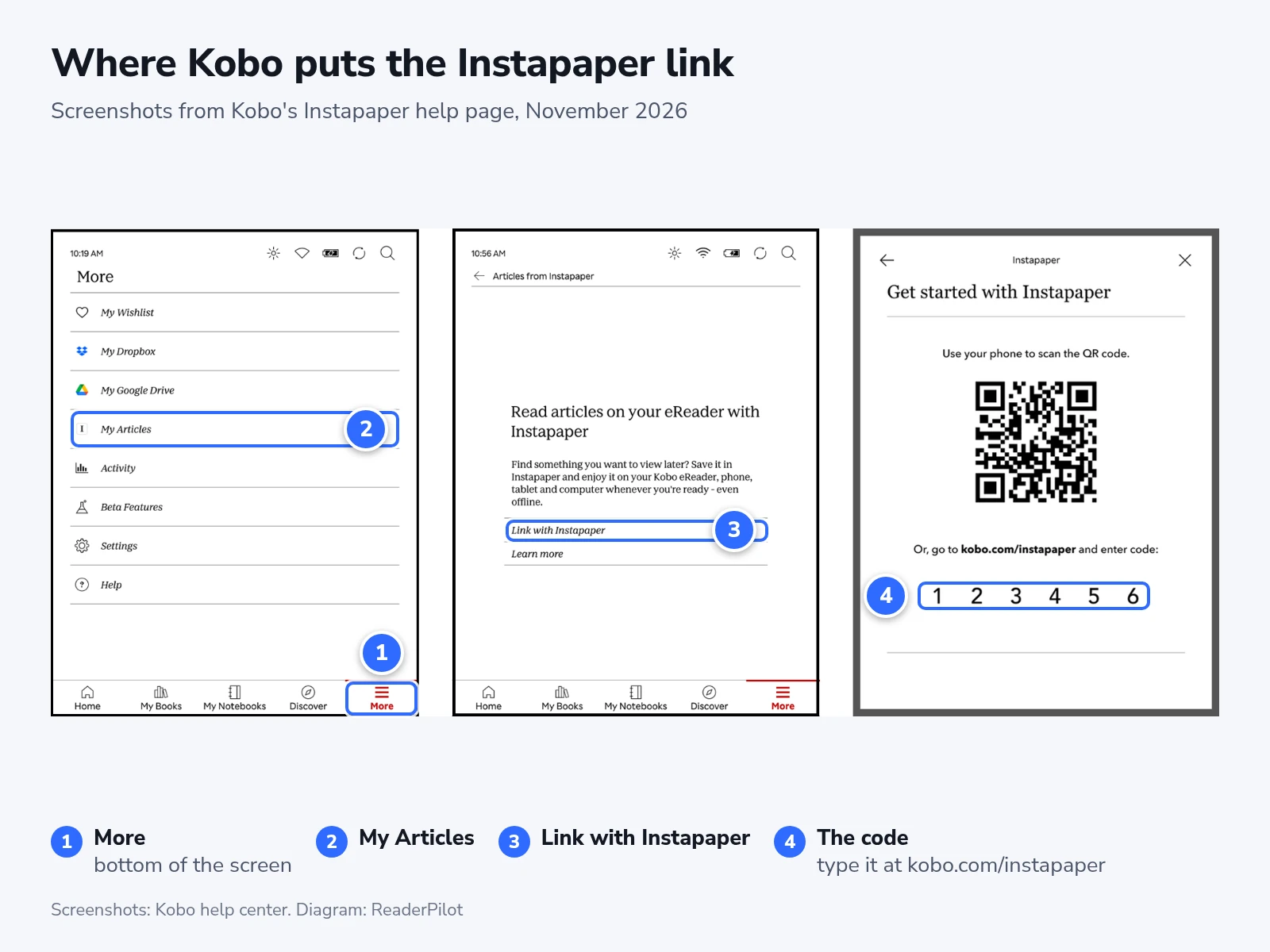
- Tap "More" at the bottom of the Home screen.
- Tap "My Articles".
- Tap "Link with Instapaper". The Kobo shows a QR code with a code under it.
- Scan the QR code with your phone, or open kobo.com/instapaper on a computer and type the code.
- Click "Link with Instapaper" on that page.
- Sign in to Instapaper if it asks, then click "Authorize" on the "Application Access" page.
The Kobo signs in to Instapaper and lists your saved articles under "Articles from Instapaper".
Save articles to Home, not a folder
Kobo’s help page guarantees syncing from the main list, while Instapaper’s documentation also lists Liked and Archive. Start with Home, the unread list, when checking that a new article reaches your Kobo.
Three kinds of save never reach the Kobo:
- Anything in a folder, including articles you file with the folder icon in the browser extension as you save them.
- Newsletters and emails you forward to your Save to Instapaper address. Instapaper marks them as email saves, and the Kobo doesn't support those.
- PDFs and videos.
Tags can help organize an article while it stays in Home. That keeps it in the list the Kobo can sync, although the Kobo does not show the tags. Filing the article in a folder removes it from Home.
To get a filed article onto the Kobo, move it back to Home. "Convert to Tag" won't do it. On the website, that option turns a folder into tags but sends the folder's articles to Archive.
Reading, liking and archiving on the Kobo
Open "More" > "My Articles" and tap an article to read it. The Kobo needs Wi-Fi to download articles, and its link screen says they open offline after that.
Inside an article, the Archive icon closes it and moves it to Instapaper's Archive. Like adds it to Liked and leaves it in Home, Delete removes it from your reading list, and Return to Articles takes you back to the list.
Archive an article when you finish it. That clears it from Home on your phone and computer too, and Instapaper keeps archived articles searchable. Save Delete for pieces you never want back.
If a new save isn't in the list, tap the Menu icon in the gray bar, then "Refresh".
When an article doesn't show up
If "My Articles" is missing from the "More" menu, sync the Kobo to fetch current software, then look again. "More" > "Settings" > "Device information" shows the version you have. In the European Union, Kobo's optional accessibility software (version 5.18) doesn't include Instapaper yet.
When an article is on your phone but not on the Kobo, move it out of any folder, then tap the Menu icon and "Refresh" while the Kobo is on Wi-Fi. A forwarded email or a PDF won't appear however often you refresh.
A sign-out or a factory reset can remove the link, because Kobo keeps the Instapaper connection only on the reader. If "My Articles" shows "Link with Instapaper" again, repeat the six linking steps. Never sign out or reset a Kobo to fix an Instapaper problem. Kobo's support page warns that both can permanently delete sideloaded books, their notes and your settings.
A second Kobo needs its own link, because Instapaper signs in each device separately. If nothing here works, Instapaper's support team asks for an email to support@instapaper.com with your Instapaper login email, your Kobo model and what went wrong.
Checking that it works
Save one short article to Home from your phone. On the Kobo, open "My Articles", tap the Menu icon and tap "Refresh". If the article appears, the link works, and later saves arrive with each sync.