You can add EPUBs to any current Kobo by dragging them onto it over USB. The Kobo Libra Colour, the Kobo Sage and a few other Kobos can also fetch files from Dropbox or Google Drive over Wi-Fi. Protected books from other stores and libraries go through Adobe Digital Editions, a free computer program that now signs in with a ByteBooks ID. A USB copy takes a few minutes, and the other two routes need about 15 minutes of one-time setup. The usual snag is a protected book copied over USB, which then stops at a “Content Lock” error on the reader.
Before you start
- Get the book as an EPUB or PDF file. A file that ends in .acsm is a license for a protected book, not the book itself.
- Have a computer with a free USB port ready. The cloud route needs Wi-Fi and a phone or computer instead.
- Use the USB cable that came with the Kobo, or another one that carries data, since some cables only charge.
- Keep the original files in a folder on your computer after you copy them.
Which route your file needs
Check first whether the file has copy protection (DRM), because that tells you which route to use. A DRM-free EPUB or PDF can go on by USB or from the cloud. A book that downloads as an .acsm file carries Adobe DRM and needs Adobe Digital Editions, usually called ADE.
Kobo lists EPUB, PDF, FlePub and MOBI for books, and CBZ and CBR for comics. Its e-readers also open TXT, HTML and RTF text and common image files. Kindle books aren’t on the list. Books bought from Kobo need none of this, since they arrive when you sync.
| Route | Kobo models | Files |
|---|---|---|
| USB cable | Every current Kobo | DRM-free files in Kobo’s formats |
| Dropbox or Google Drive | Libra Colour, Sage, Elipsa, Elipsa 2E, Forma | DRM-free files in Kobo’s formats |
| Adobe Digital Editions | Every current Kobo, over USB | Store and library books sold as .acsm files |
The Clara BW and Clara Colour aren’t on Kobo’s Dropbox or Google Drive lists, so on those two you add files with the USB cable. Kobo Desktop, the company’s computer app, doesn’t work with the Libra Colour, Clara Colour or Clara BW either.
Copy files over USB
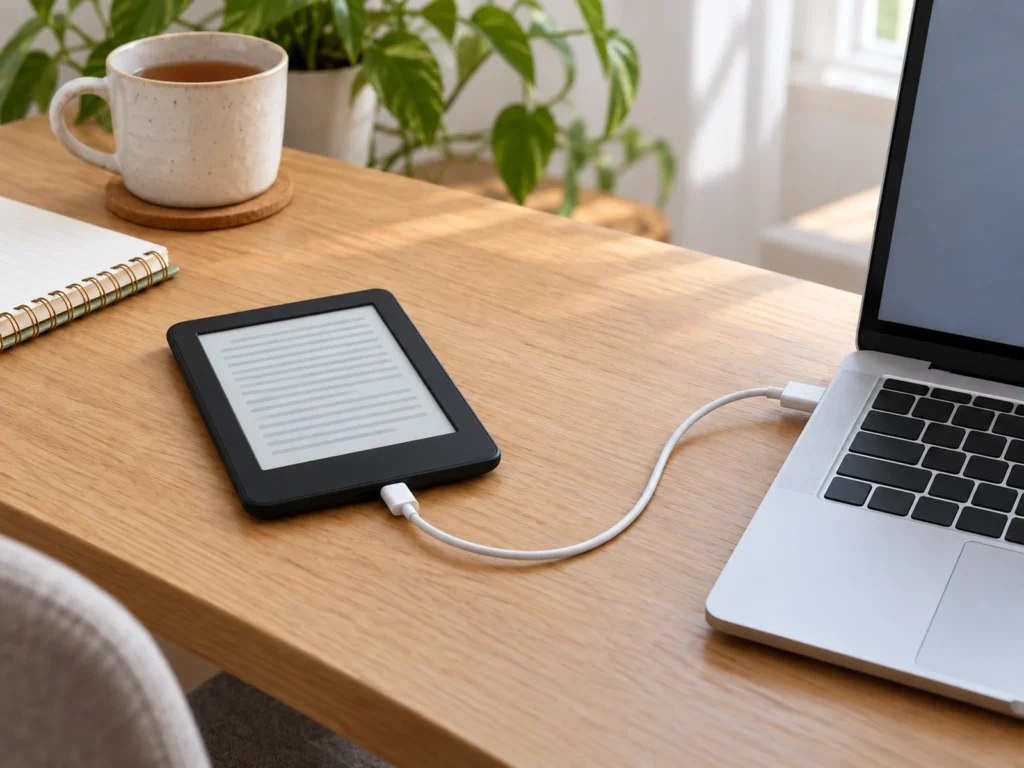
- Turn on the Kobo and connect it to your computer with the USB cable.
- Tap “Connect” when the “Computer detected” window appears on the reader.
- On the computer, open the drive named “KOBOeReader” and drag your EPUB or PDF files onto it.
- Eject the drive. On a Mac, right-click “KOBOeReader” in Finder and click “Eject KOBOeReader”. On Windows, right-click the “KOBOeReader” drive and click “Eject”.
- Unplug the cable. The reader shows “Importing content”, and the new books appear under “My Books” at the bottom of the Home screen.
Plug the Kobo straight into the computer, since some USB-C hubs don’t detect the reader. If your computer has only USB-C ports, use a USB-C to USB-A adapter instead of a hub. Kobo also recommends a direct connection when a Mac on macOS Sonoma 14.4 never shows the reader. Always eject before you pull the cable, because unplugging mid-session can lose data.
Send files from Dropbox or Google Drive
This route works on the Libra Colour, Sage, Elipsa, Elipsa 2E and Forma. Dropbox needs Kobo software 4.18 or later, and Google Drive needs 4.37 or later. Your version is under “More” > “Settings” > “Device information”, beside “Software version”.
- Connect the Kobo to Wi-Fi.
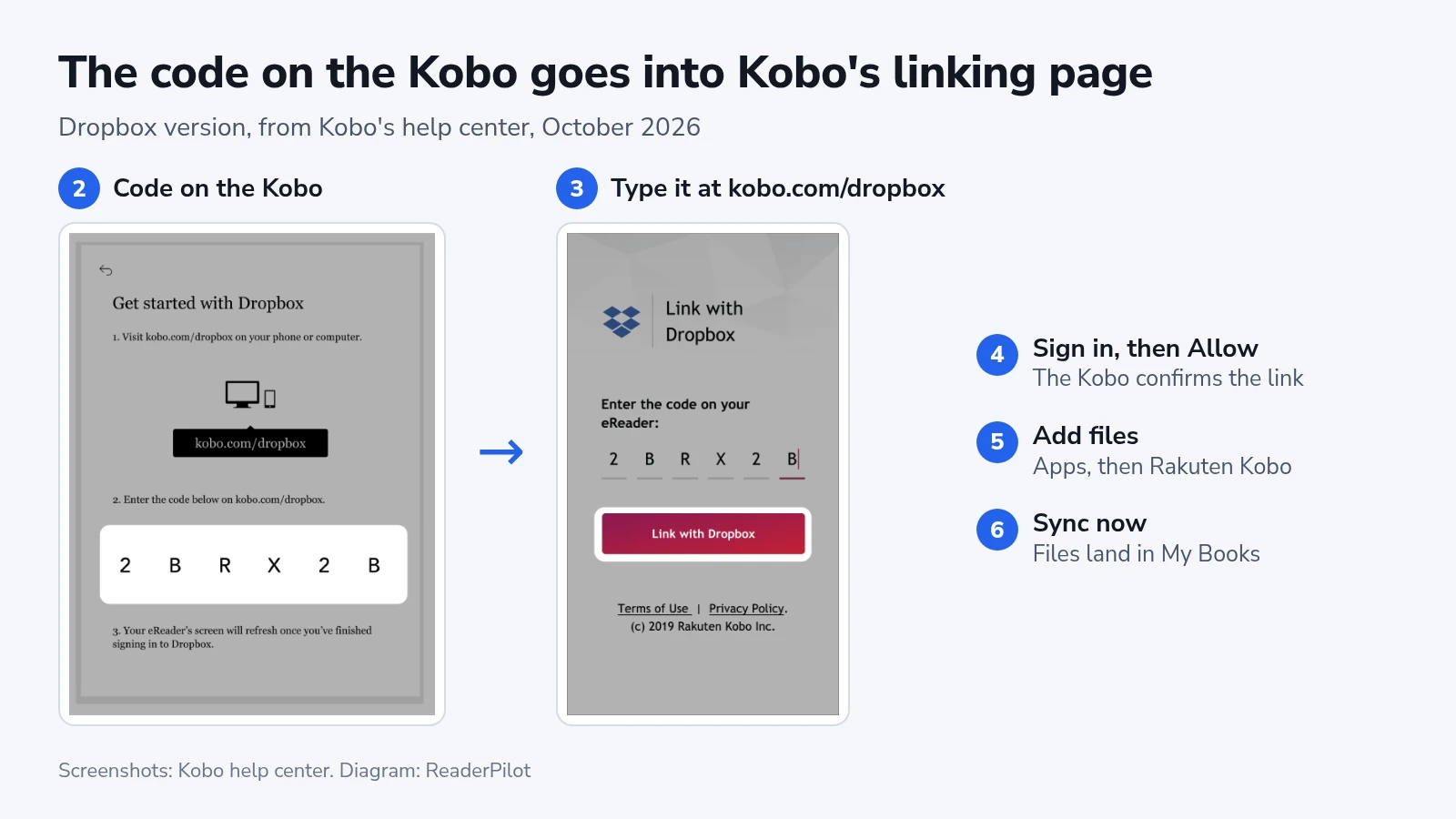
- Open the linking screen. For Dropbox, tap “More” > “Settings” > “Accounts”, then “Get Started” under “Dropbox”. For Google Drive, tap “More” > “My Google Drive” > “Get Started”. The reader shows a short code.
- On a phone or computer, open kobo.com/dropbox or kobo.com/googledrive and type the code. Then click “Link with Dropbox”, or “Continue” for Google Drive.
- Sign in and click “Allow” on the access screen. Google Drive first asks you to click “Continue” on an “Approve Data Sharing” screen. The Kobo then confirms the link.
- Put your files in the “Rakuten Kobo” folder. In Dropbox it sits under “Apps” > “Rakuten Kobo”. Google Drive gets its own “Rakuten Kobo” folder when you link the account.
- On the Kobo, tap the Sync icon at the top of the Home screen, then “Sync now”. New files from the folder download to “My Books”.
You can also fetch one file at a time. Open “More” > “My Dropbox” or “My Google Drive” and tap the file. A free Dropbox account links three devices at most, and the Kobo link doesn’t count as one of them.
To unlink Dropbox, tap “Sign out” under “Dropbox” in “More” > “Settings” > “Accounts”. Books you already downloaded stay on the reader.
Add protected books with Adobe Digital Editions
A store or library that uses Adobe DRM gives you an .acsm file instead of the book. ADE is free software for Windows and Mac that opens that file, downloads the book and copies it to the Kobo. It works with Kobo e-readers, not with the Kobo apps.
Adobe has handed ADE’s accounts to ByteBooks, a service run by Wipro Engineering, according to Adobe’s FAQ (last updated August 27, 2026). A computer that ADE already authorized keeps working. A new computer, or any fresh sign-in, needs a ByteBooks ID. ADE still shows the label “Adobe ID”, and you type your ByteBooks email and password there.
- Install ADE from Adobe’s Digital Editions download page.
- Create a ByteBooks ID on the ByteBooks “Transition Help” page. Pick “Already have an Adobe ID account” if you used ADE before, or “Create Your ByteBooks Account” if you didn’t. Use the email address of your old Adobe ID, so the books you already own stay linked.
- Open ADE, click “Help” > “Authorize Computer” and sign in with your ByteBooks email and password.
- Connect the Kobo by USB and tap “Connect” on the reader.
- In ADE, find the Kobo under “Devices”, click the gear icon beside it and click “Authorize Device”.
- Open the .acsm file in ADE. It downloads the book as an EPUB or PDF.
- Drag the book onto the Kobo under “Devices”.
- Eject the Kobo, unplug it and look for the book in “My Books”.
You authorize each computer and each reader once. After that, a new book needs only the connect, open, drag and eject steps. Library loans work the same way, though many newer Kobos can also borrow library books directly without ADE.
If the book doesn’t show up or open
If the “Computer detected” window never appears, try another cable first, in case yours only charges. Then plug it straight into the computer, try a different port and restart the computer. Updating the reader over Wi-Fi can help too. Kobo’s last suggestion is a factory reset. It erases sideloaded books, so keep your copies before you try it.
For a Dropbox or Google Drive file that never reaches the reader, first make sure it’s in the “Rakuten Kobo” folder. File names can’t contain a vertical bar, quotation marks, a colon, a question mark or angle brackets. Then tap the Menu icon on the “My Dropbox” or “My Google Drive” screen and tap “Refresh”. Google Drive also has “Download all” in that menu.
A “Content Lock” or authorization error on the Kobo means the book carries DRM. Delete the copy you added by USB and add it again through ADE. If it came through ADE and still won’t open, start the authorization over:
- Delete the book from ADE and from the “My Digital Editions” folder in your Documents.
- Check that the date and time on the Kobo are correct.
- In ADE, press Ctrl+Shift+D (Command+Shift+D on a Mac), enter your password, click “Continue” and then “Erase Authorization”.
- Connect the Kobo, right-click it under “Devices”, click “Erase Device Authorization” and confirm.
- Reauthorize the computer and the Kobo, then download the book again.
Kobo’s page for this fix still says to sign in with an Adobe ID. Sign in with your ByteBooks ID instead.
The error “E_ADEPT_RESET_PW_REQUIRED” in ADE means your account still has to move to a ByteBooks ID. Create one with the same email address and sign in again. If you’ve lost access to that email, ByteBooks support can recover the account until November 30, 2026.
If sideloaded books vanished from a Libra Colour, Clara BW or Clara Colour after an update, the Kobo 6.0 beta bug is the likely cause. It affects versions 5.18.270971 and 6.0.274403, which you can check under “Device information”. Kobo OS 6.0.2 (version 6.0.276679) fixes it. You can get it as an optional beta under “More” > “Settings” > “Device information” > “Check for updates”. The update restores the books but not yet their highlights and notes.
Don’t sign out of your Kobo account to fix a missing sideloaded book, even though signing out is the last step on Kobo’s general checklist for missing books. Kobo’s October 13 support page says a sign-out or a reset can lose some things for good, because they live only on the reader. They are sideloaded books with their notes and progress, the Adobe authorization, and the Dropbox and Google Drive links. A separate Kobo page on signing out says books are kept, so the two pages disagree. With your originals on the computer, the worst case is copying them back, minus the highlights.
Check that it worked
Find the new title in “My Books”, open it and turn a few pages. In a PDF, try zooming in too. A protected book that opens without a “Content Lock” error is authorized.
Sideloaded books stay on the reader you copied them to. They don’t appear on your other Kobos or in the Kobo app, even after a sync. To keep them together, tap “My Books” > “Collections”, tap the Menu icon, choose “New collection” and add the books.
Kobo keeps the Adobe authorization and the cloud links on the reader itself. After a factory reset or a sign-out, authorize the Kobo in ADE again, relink Dropbox or Google Drive, and copy your sideloaded files back from the computer.