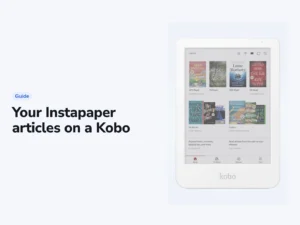
If your library moved off OverDrive, borrowing on a Kobo turned into a chore. You download a small license file from the library site, open Adobe Digital Editions on a computer, plug the reader in by USB and copy the book across. Kobo’s support pages still tell you to do exactly that. For cloudLibrary libraries in the United States and Canada, that changed on October 1, 2026, when Kobo published a help article called “How to connect your Kobo account to CloudLibrary”. It documents a “Send to Kobo” button that delivers a borrowed book to the reader over Wi-Fi.
Who can use it
Kobo limits the integration to readers whose library is in the United States or Canada. Customers elsewhere, it says, will not see cloudLibrary as a library option. The reader needs Kobo software 4.38 or later, and the Kobo Clara BW, Clara Colour and Libra Colour need 4.46 or later. Kobo doesn’t list the other models by name, so check your software version under Settings, Device information.
cloudLibrary is a platform that public libraries use to run their digital lending, much as OverDrive runs lending behind Libby. Plenty of library systems use it, and until this integration none of them could push a book straight to a Kobo.
Libraries that leave OverDrive
Kobo’s headline library feature has always been OverDrive, built into the reader, with your card stored in the settings. It works well, and it has long been a reason to choose a Kobo over a Kindle.
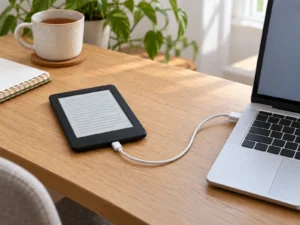
That only helps if your library uses OverDrive. When a library system switches vendors, a Kobo owner drops back to the Adobe Digital Editions route. That means a desktop computer, a cable and a file with an .acsm extension. Kobo documents that path in one line: “Use Adobe Digital Editions to copy the .acsm file to your eReader.” The route works, but it asks a reader in 2026 to own a laptop and understand digital rights management plumbing to read a library book.
The Send to Kobo button cuts all of that down to one tap, and that tap is the whole significance of the story.
Setting up Send to Kobo
In the cloudLibrary app or website, sign in with your library card, open the Account tab, choose Kobo Connect and sign in with your Kobo account. You only make that link once. After that, borrow a title in cloudLibrary and press Send to Kobo. The book appears in the reader’s library after a sync over Wi-Fi.
The Send to Kobo button lives only inside the cloudLibrary app and website. If you normally browse your branch’s own online catalog, you’d still have to go to cloudLibrary to send anything across. The OverDrive integration is different, because there you browse and borrow on the device itself.
The limits Kobo and cloudLibrary list
Kobo says borrowed books return automatically when the loan period ends. Until then, they sit in My Books with the rest of your library. Not every title can be sent, either. cloudLibrary puts its match with Kobo’s catalog at 96%, and a library book with no Kobo match shows no Send to Kobo button.
One Kobo reader can hold up to five cloudLibrary accounts. One cloudLibrary account, though, can’t be connected to more than one Kobo device. So two readers in one house need two cloudLibrary accounts, each signed in with its own library card. Neither company says whether a renewal reaches the reader, or whether your place in the book syncs between the cloudLibrary app and the Kobo.
Clara BW, Clara Colour and Libra Colour
The higher software floor applies to three readers that Kobo launched in 2024. The Kobo Clara Colour is the six-inch color model, and the Clara BW is its monochrome twin. The Libra Colour is the seven-inch model with page-turn buttons. Each of them needs 4.46 before cloudLibrary books will arrive.
How far the feature reaches
It is not a replacement for the OverDrive integration. If your library uses OverDrive, nothing here changes for you and Libby remains the better experience, because you can browse and borrow without leaving the device.
Kobo’s steps start in the cloudLibrary app or website, on another screen, and the Kobo receives what you send. The help article doesn’t describe a cloudLibrary catalog on the reader itself.
What to do now
Check which platform your library uses before you get excited. Its website will say, and the answer decides whether any of this applies to you.
If your library uses cloudLibrary and is in the United States or Canada, update the reader to the version that Kobo names and connect the accounts. Everywhere else, the Adobe Digital Editions route still works.
With a cloudLibrary card outside North America, buy a reader on the reading experience, the size and the store. Kobo has not said when the integration will reach other countries.