You can export BOOX highlights from NeoReader, the reading app on every BOOX, to three places: Readwise, a file on the tablet, or another app such as email. Readwise is the newest route, added in July 2026. BOOX says it works on all of its E Ink devices, from a Note Air6 C tablet to the phone-sized Palma 2 Pro. Nothing reaches Readwise until you turn on a switch hidden in the Readwise account’s settings. Pen notes never go there at all.
Every step here comes from BOOX’s help center and the screenshots it publishes there, which we read in October 2026.
What you need first
- A Readwise account on a trial or a paid plan, with its password at hand for step 2.
- Wi-Fi on the BOOX, since highlights go to Readwise’s cloud library.
- A book in NeoReader with a few highlights in it, so you can check the first export.
- About ten minutes for the first setup. After that, each export takes a few taps.
What each route carries
Highlights and typed notes can take any of the three routes. Pen notes and text boxes can’t go to Readwise.
| What you made in NeoReader | Where it can go |
|---|---|
| Highlights, underlines and typed annotations | Readwise, a file on the tablet, or another app through “Share” |
| Handwriting on the page | A PNG or PDF from the “Handwriting” tab, never Readwise |
| Text boxes | Not Readwise (BOOX’s Readwise article excludes them) |
To get a margin note into Readwise, type it as an annotation on the highlight instead of writing it with the pen.
Connect Readwise to the BOOX
- On the home screen, open “Library” and tap the “Cloud Storage” icon at the top.
- Tap “Readwise”, then “Bind and Authorize”, and sign in to your Readwise account.
- Back on the “Cloud Storage” screen, long-press “Readwise” and tap “Settings” (the gear icon).
- Under “Library”, turn on the switch whose label ends in “Data Export Function”. It shows “ON” once it’s set.
The binding screen also has a “Get Access Token” button. The account isn’t bound until you’ve finished both the token step and the authorization. Anyone holding that token can read and edit your highlights, so keep it to yourself.
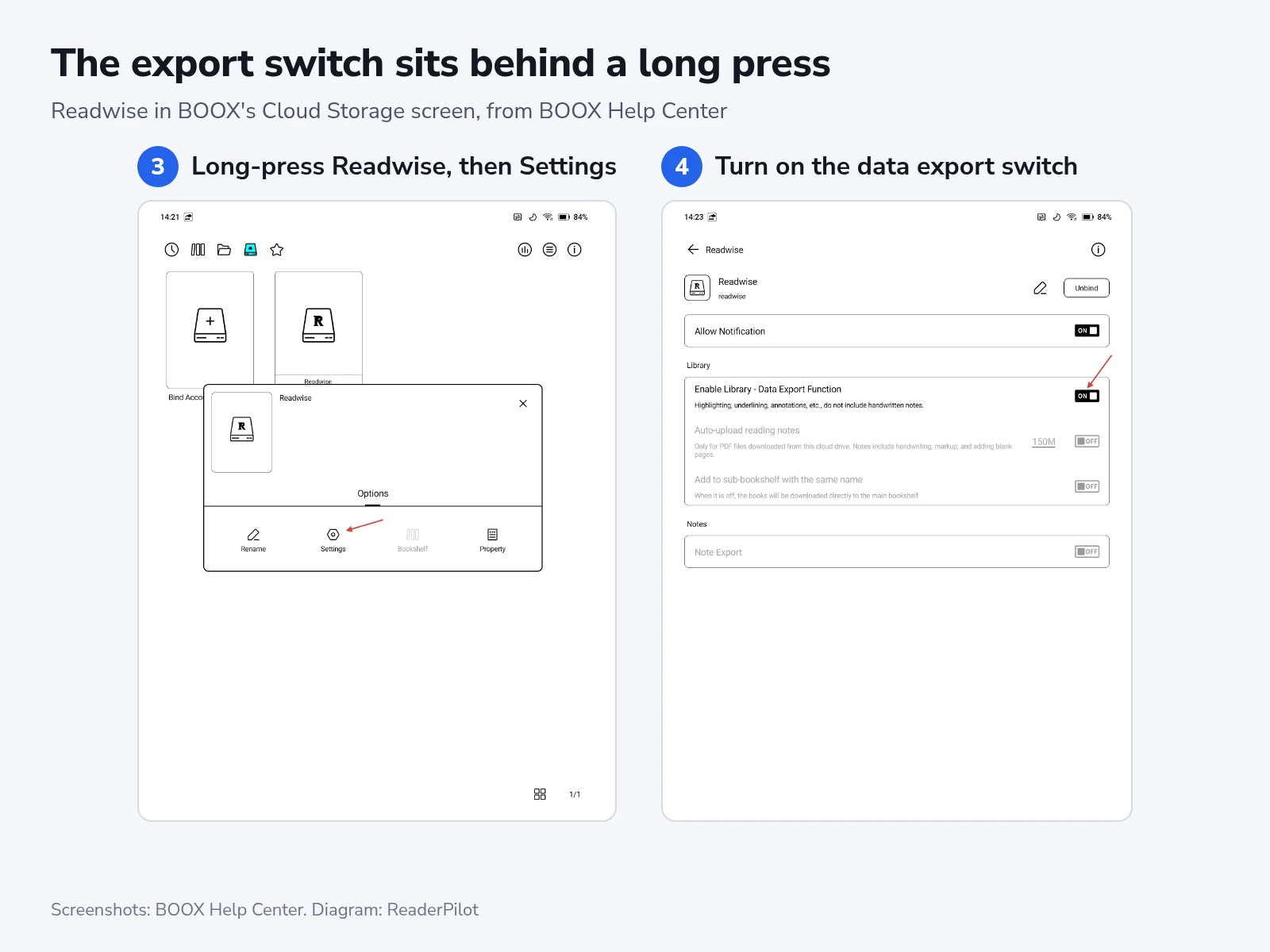
The switch is behind a long press, well away from NeoReader’s export buttons. Its small print also gives the limit: highlighting, underlining and annotations go out, but handwritten notes don’t.
Export highlights from a book
- Open the book in NeoReader, tap the middle of the page, and tap “Contents” at the bottom left.
- Tap the “Annotations” tab, the third icon in the row.
- Tap the circle beside each highlight you want to send.
- Tap the export button at the bottom of the list.
- Tap “Export to apps” and wait for the “Exporting to other apps. Please wait…” message to close.
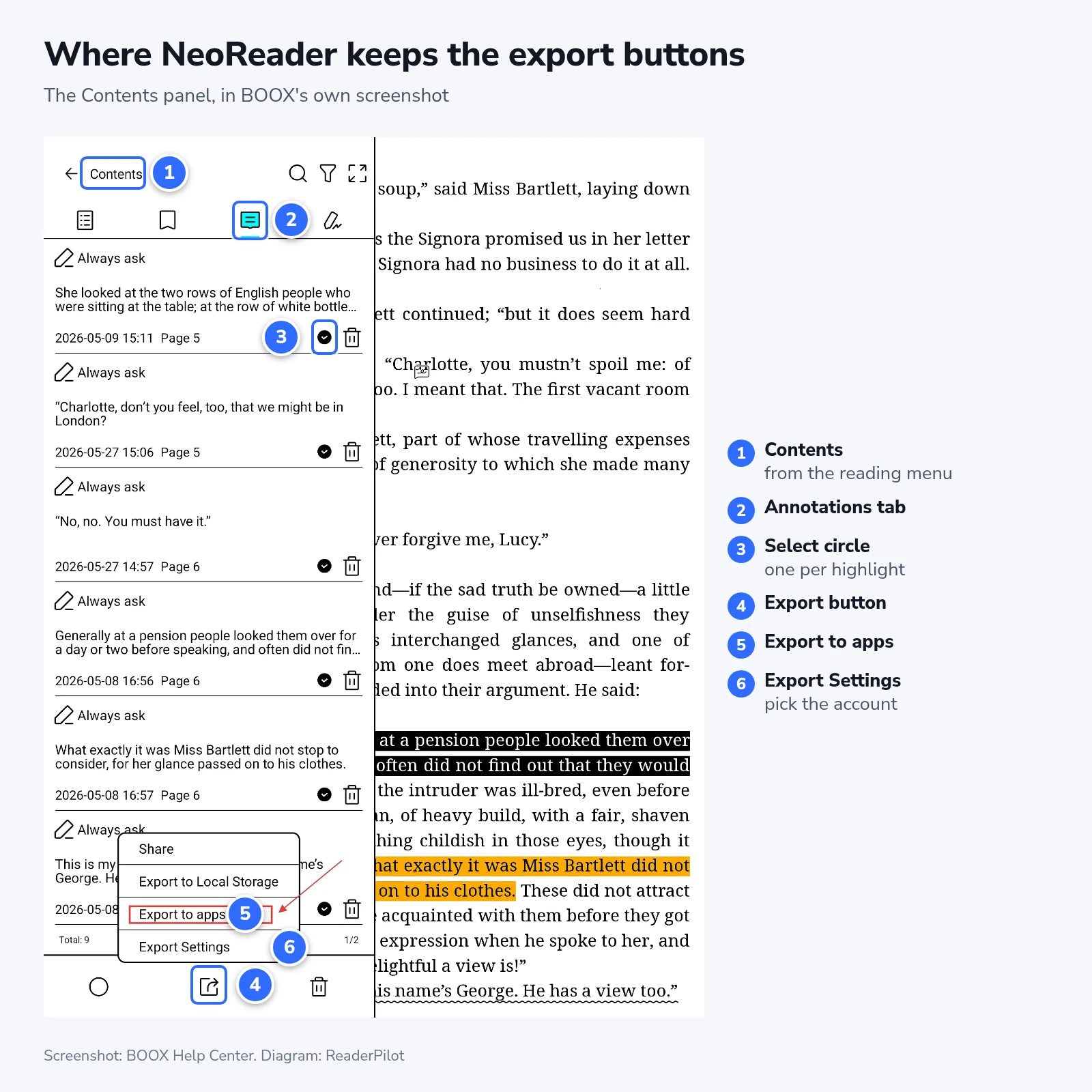
Before your first export, tap “Export Settings” in the same menu (6 in the figure), leave only the accounts you want ticked, and tap “OK”. BOOX’s article says that when no account is chosen, an export goes to every bound account at once. Its screenshot of that menu shows a Google Drive account ticked next to Readwise. We’d untick everything but Readwise unless you want a second copy in your drive.
Without a Readwise subscription
“Export to Local Storage”, in the same menu, saves the highlights you ticked on the tablet. “Share” hands them to another app, such as your email. To change NeoReader’s export settings, tap the middle of a page, then “More” (top right) > “Settings” > “Annotation Export Settings”.
Readwise is worth paying for if you also highlight on a Kindle or in Instapaper, because it gathers those highlights in the same library. For one tablet and the occasional book, the file export does the job for free.
Highlights also sync to BOOX’s cloud when you’re signed in to an ONYX account and the “Sync Switch” is on. The switch is under “Library” > the “More” icon at the top right > “Library Settings”. With sync on, you can read and share your highlights in the BOOX Assistant app on an Android phone or iPhone.
Pen notes go out as PNG or PDF
Open “Contents” in the book and tap the “Handwriting” tab, the pen icon at the right end of the tab row. The handwriting listed there exports as PNG or PDF. Use this tab whenever you want pen notes in a file, because the Readwise export leaves them out.
If it doesn’t work
If nothing reaches Readwise, check the switch from step 4 first, since every export depends on it. Then check that Readwise is ticked under “Export Settings”.
Check for a system update if Readwise isn’t among the Cloud Storage tiles, since BOOX’s help page names no minimum firmware version. The path is “Settings” > “Firmware Update” on some models and “Settings” > “System Settings” > “System Update” on others. BOOX releases updates in batches by model, so one tablet can get a feature before another. That’s how firmware V4.3 went out, starting October 8.
Pen notes missing from Readwise aren’t a fault, because the export leaves handwriting out by design. Send those pages from the “Handwriting” tab.
If highlights also turned up in Google Drive, the export went to every bound account. Set “Export Settings” to Readwise only.
When exports stop working later, check your Readwise plan, because features stop when a paid subscription expires. For a trial account that asks you to upgrade, leave the binding page and bind the account again.
After the export
Open Readwise on your phone or computer and find the book. The exported highlights appear there right away. The link also works the other way: “Library” > “Cloud Storage” > “Readwise” on the BOOX shows your whole Readwise library, including highlights made in other apps.
Readwise gets nothing new from the BOOX until you export again. BOOX describes only a manual export. In its screenshot, the auto-upload switch on the Readwise settings screen is grayed out. We’d export at the end of each book, or after each chapter of a textbook you’re studying. From the second export on, tick only the highlights you haven’t sent yet, since BOOX doesn’t say how Readwise handles one sent twice.