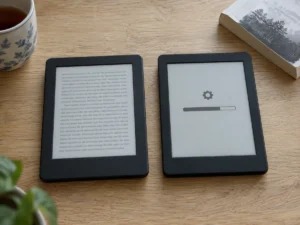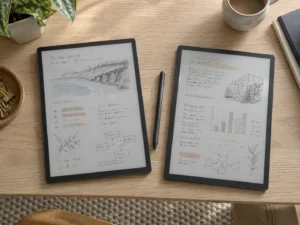
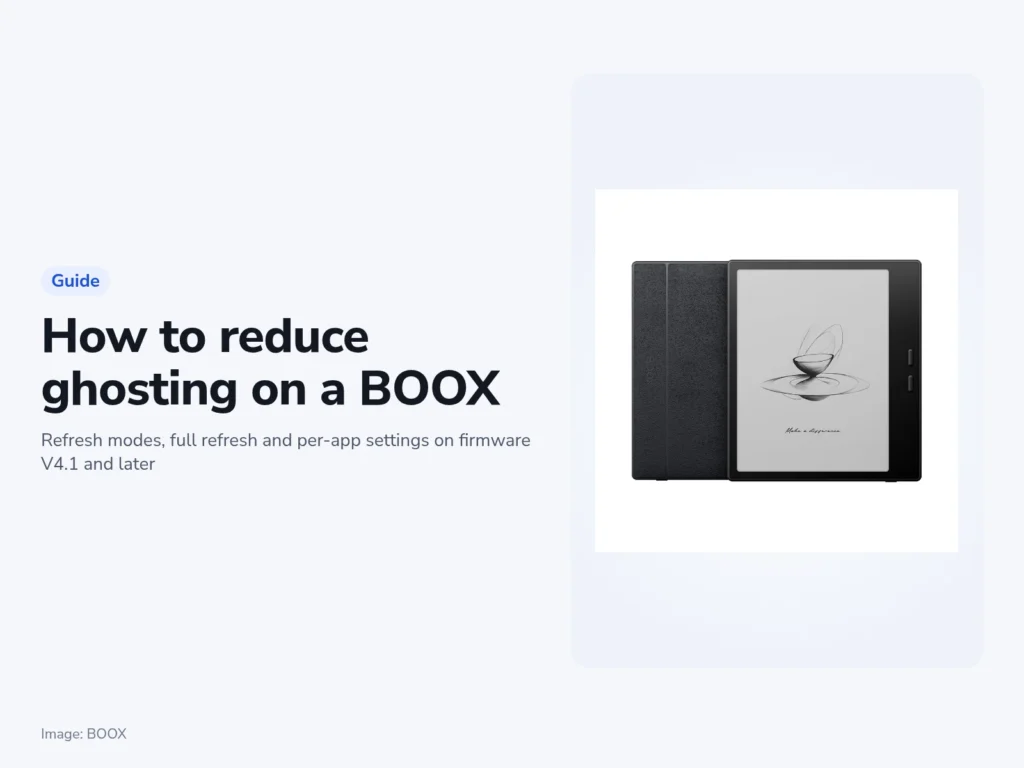
These steps cover BOOX's Android e-readers and tablets on firmware V4.1 or later, including the Go 7 and the Go Color 7 (Gen II). To reduce ghosting on a BOOX, you set three things: the refresh options inside NeoReader, the refresh mode for each reading app, and a full refresh you can trigger by hand. Allow ten minutes, with a book open in every app you read in. BOOX saves the refresh mode separately for each app, so Regal chosen in the Kindle app changes nothing in Libby.
Before you start
- Firmware V4.1 or later. That release, from August 28, 2025, renamed the refresh panel from "E Ink Center" to "EinkWise". The build number shows under "Settings" > "System Settings" > "System Update" or, on some models, "Settings" > "Firmware Update". BOOX promises free updates for at least three years after a model's launch.
- A book open in NeoReader and in each reading app you use, such as Kindle, Kobo or Libby.
- A charger, if an update is waiting. BOOX asks you to back up your files and connect power before updating.
Why the traces build up
BOOX describes ghosting as faint traces of previously displayed text lingering on the screen. Every page change moves charged black and white particles inside the display, and the more detail a page holds, the longer they take to settle. By BOOX's account, the faster refresh modes give up some of that detail for speed, so traces collect until a full refresh redraws the whole screen.
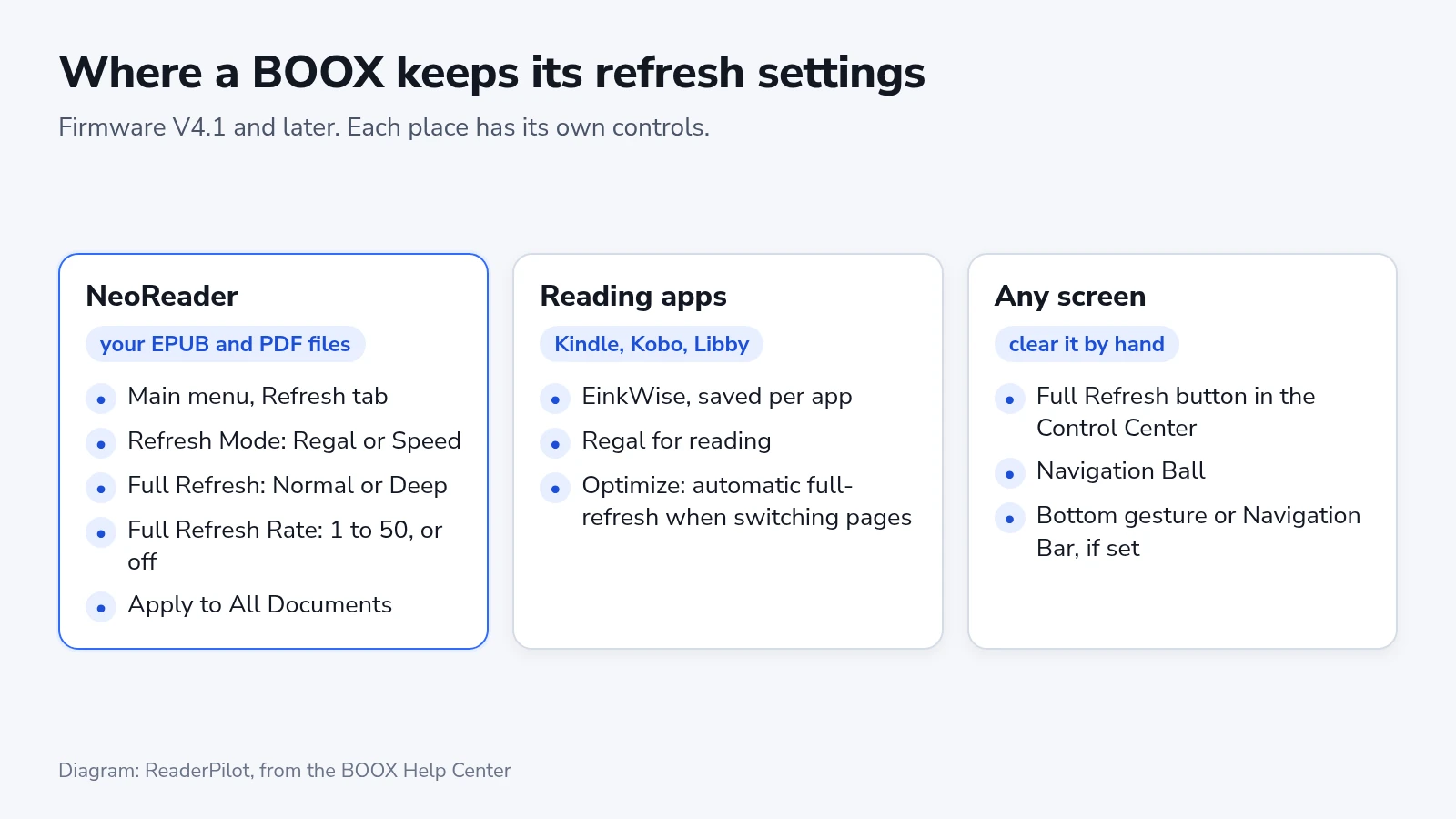
Refresh settings live in three places on the device, and each one has controls the others lack.
Set NeoReader for clean pages
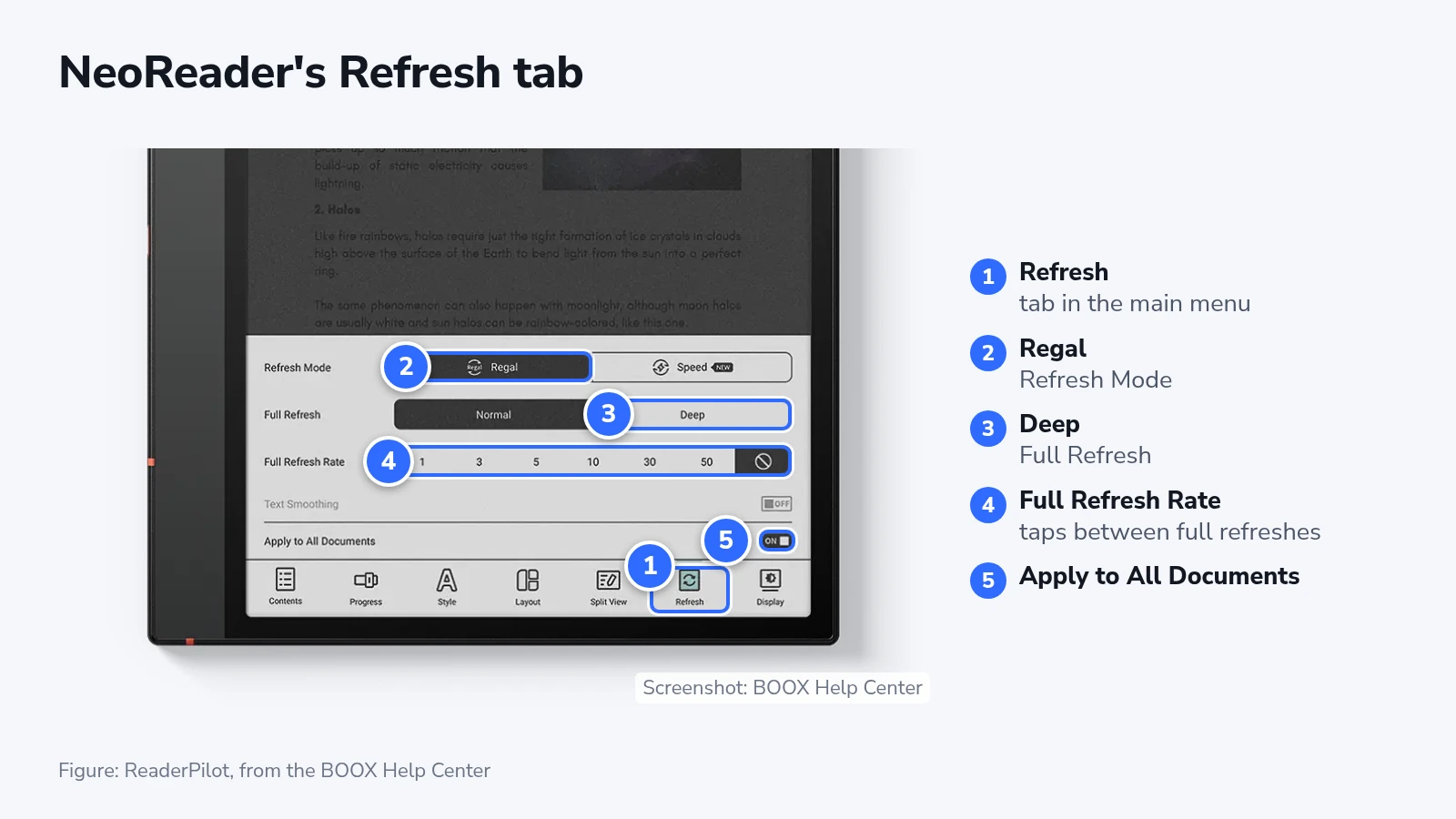
NeoReader is the BOOX app that opens your own EPUB and PDF files. Open a book in it and tap the center of the page to bring up the main menu, then work through the tab:
- Tap the "Refresh" tab at the bottom of the menu.
- Under "Refresh Mode", tap "Regal", the mode BOOX designed to reduce ghosting while keeping good visual quality.
- Under "Full Refresh", tap "Deep", which BOOX suggests when you want cleaner pages with minimal ghosting.
- Under "Full Refresh Rate", choose how many taps pass between full refreshes: 1, 3, 5, 10, 30 or 50, or the crossed-out circle for none. Start at 5 and drop to 3 or 1 if traces remain.
- Leave "Apply to All Documents" on, so every book you open uses the same settings.
Over the next ten pages, the screen should redraw completely on every fifth turn and take the outlines of earlier pages with it.
A higher rate means more taps between cleanings and, as BOOX puts it, more ghosting before each one. If you switch to "Speed" for skimming, turn on "Text Smoothing", which works only in that mode.
Set each reading app
Kindle, Kobo, Libby and other apps from the Play Store take their refresh mode from EinkWise, which stores one setting per app and names the app it is changing at the top of its panel. Do this with the book open:
- Open the book in the reading app.
- Swipe down from the top right corner to open the "Control Center".
- Tap "EinkWise".
- In the "Refresh Mode" row, tap "Regal".
- On the Home Screen, open "Apps", long-press the reading app and choose "Optimize".
- On the "Display" tab, turn on "Automatic full-refresh when switching pages".
Repeat the six steps for every reading app you use. Page turns in each one then end with a full refresh.
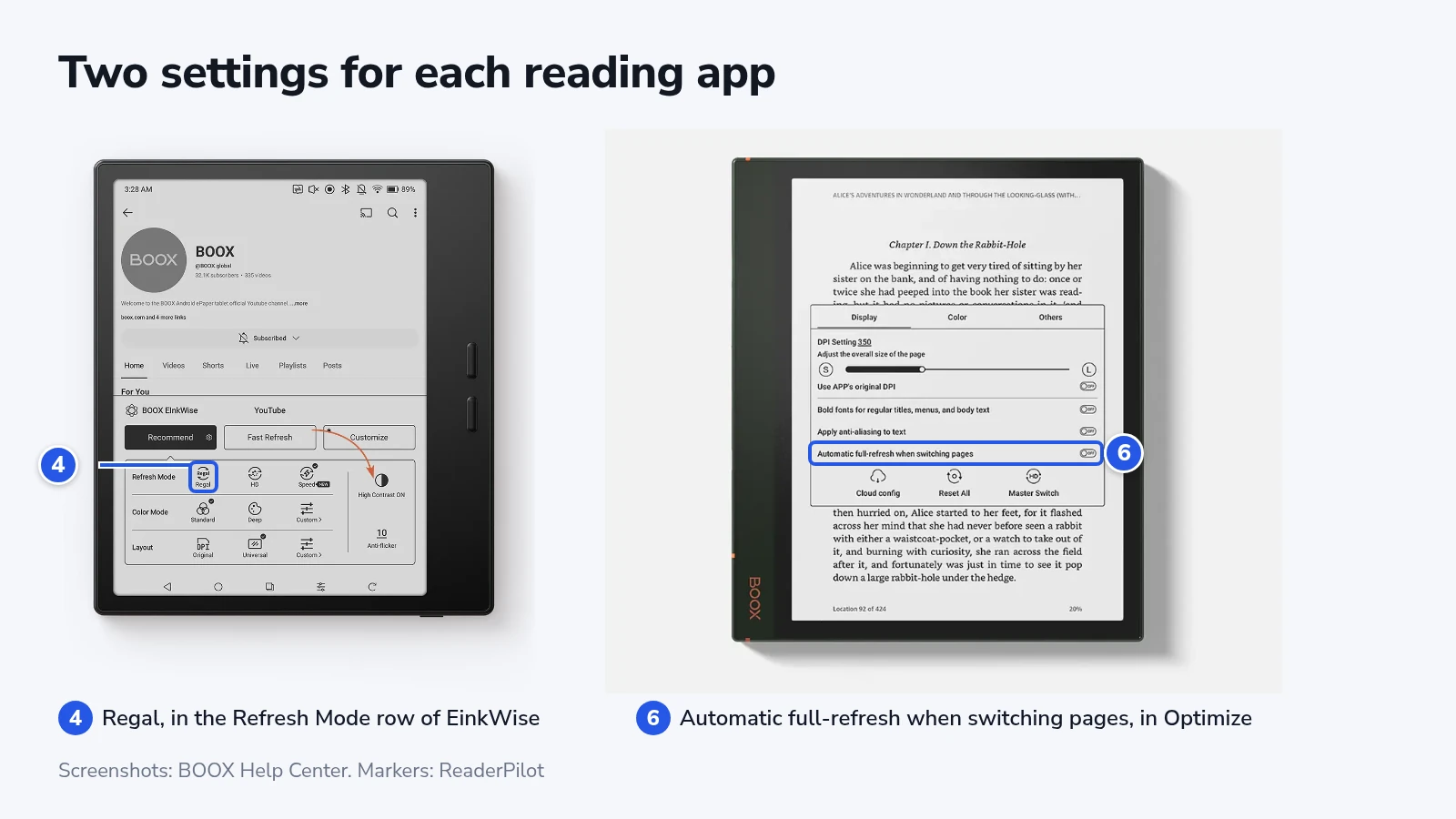
BOOX's guide for its E Ink tablets ranks Regal first for display quality and lists it for general reading, ahead of "HD" and Speed. It also says the Regal of firmware V4.1 leaves cleaner pages after a refresh but may flicker slightly more. If that flicker bothers you and your panel lists HD, pick HD in step 4. Leave Speed for scrolling, such as a web page or a long catalog in an app.
EinkWise also opens with a swipe up from a bottom corner of the screen, or from its button on the "Navigation Bar". BOOX's two user guides name different corners, left in one and right in the other, and the gesture settings can move it.
Clear the screen by hand
A full refresh on demand cleans a page that still shows traces, in any app. The quickest is the "Full Refresh" button in the Control Center. The "Navigation Ball" carries the same button once you turn the ball on from the Control Center. You can also give a full refresh its own bottom-edge swipe under "Settings" > "Gestures" > "Bottom", or a button on the Navigation Bar under "Settings" > "Gestures" > "Navigation Bar".
Mode names by model and firmware
EinkWise lists different modes depending on the app in front and the model. HD is the system default on the Home Screen and in system apps, Regal appears in third-party apps, and NeoReader's tab offers two.
| Where you are | Modes BOOX lists | Pick for reading |
|---|---|---|
| NeoReader, "Refresh" tab | Regal, Speed | Regal |
| A third-party app, in EinkWise | Regal, Speed, and HD on some models | Regal |
| Home Screen and system apps, in EinkWise | HD (the system default), Speed, and Smooth on some models | HD |
| Firmware before V4.1, in E Ink Center | Older sets, such as the HD, Balanced, Fast and Ultrafast that BOOX listed for its Tab models in 2023 | HD |
Smooth came to the Note Air5 C with firmware V4.1.2, and BOOX's help center lists it only for "specific devices such as Note Air5 C". BOOX aims it at scrolling-heavy apps and video streaming.
Firmware V4.2, released on April 21, 2026, added "Image Smoothing" to EinkWise for image-heavy pages. It works in HD and Regal and evens out mottled gradients. The Optimize panel has its own Image Smoothing switch, which color models lack, and "High Contrast", on the models that have it, does not work in HD.
If it does not work
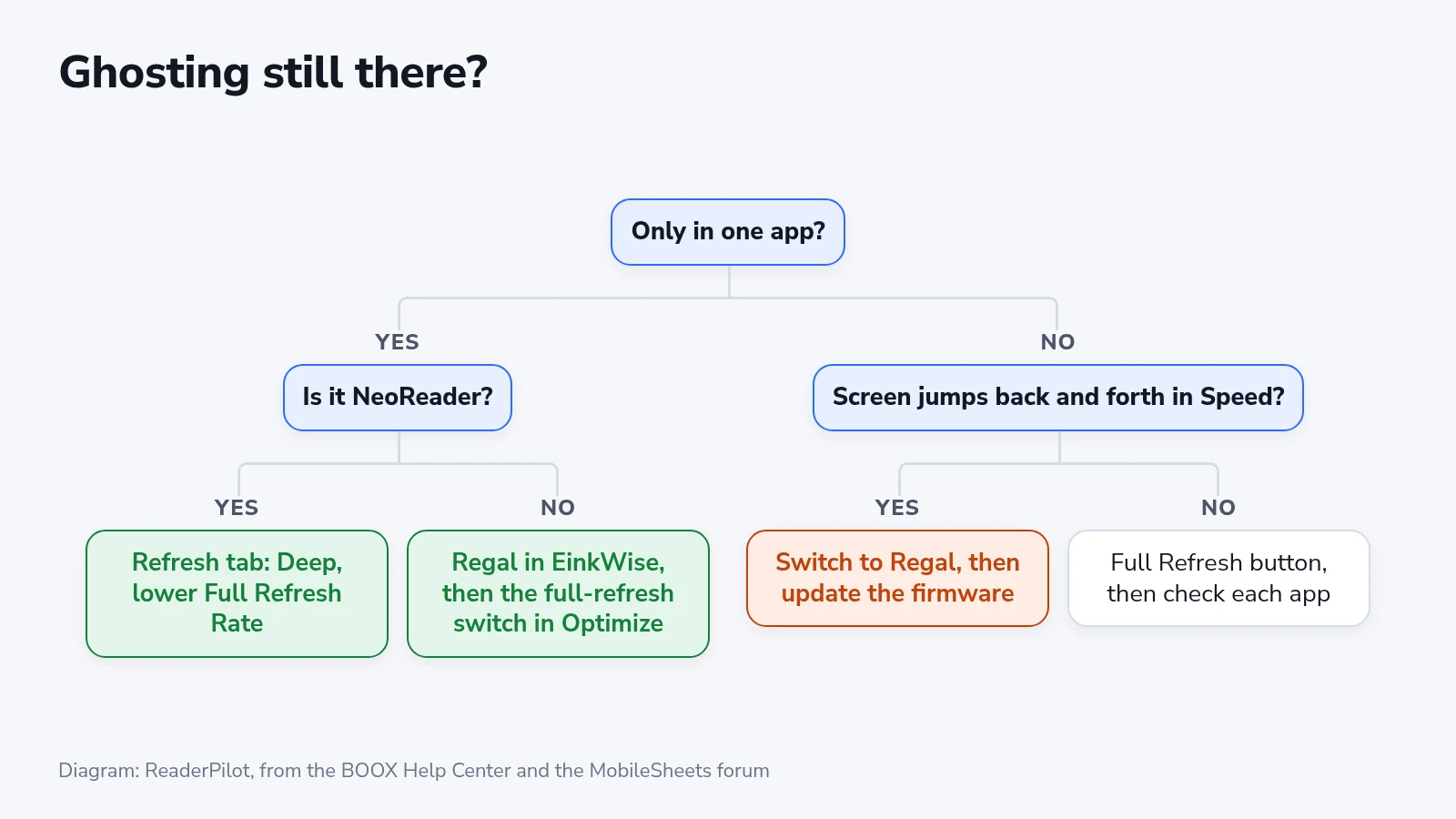
If traces show up in only one app, that app still runs its own mode. Repeat the reading-app steps with that app open, and check that the EinkWise panel shows its name.
Pages that jump backward and then forward while they refresh point to a firmware problem from mid-2026. On July 9, 2026, the developer of MobileSheets, a sheet-music app, reported that a recent firmware from Onyx, the company behind BOOX, made Speed the default on some tablets, including the Tab X, and that the screen jumped this way. The workaround was Regal for the affected app. Two days later the developer wrote that Onyx had released a fix that would reach owners gradually. One owner whose tablet still reported the latest version in mid-August received a build labeled "4.2-Fix" a few days after asking through the tablet's feedback option, and another was still on the June build on September 15.
BOOX's help center gives the same route for an update that is slow to arrive. Go to "Settings" > "Feedback" (or "Feedback & Advice"), tap the "+" button, type the request and tap "Send".
Blotchy images in Regal or HD call for Image Smoothing in EinkWise. If ghosting shows everywhere and nothing jumps, press "Full Refresh" in the Control Center, then check the mode in each app.
Check it worked, and when to redo it
Turn ten pages in NeoReader and in each reading app. With a rate of 5, NeoReader should clear on every fifth turn, and an app with the automatic full-refresh switch on should clear on every turn.
Run the same check after each firmware update, because the mid-2026 build showed that an update can change the default mode. BOOX releases updates in batches, and V4.3 began rolling out on October 8, 2026.